APPLE IPHONE X FACE ID CAN BE HACKED WITH SILICON MASK

Just a week after Apple released its brand new iPhone X on November 3, a team of researchers has claimed to successfully hack Apple's Face ID facial recognition technology with a mask that costs less than $150. They said Apple iPhone x face id can be hacked with silicon mask easily.

apple iPhone x face id hacked
Yes, Apple's "ultra-secure" Face ID security for the iPhone X is not as secure as the company claimed during its launch event in September this year.

"Apple engineering teams have even gone and worked with professional mask makers and makeup artists in Hollywood to protect against these attempts to beat Face ID," Apple's senior VP of worldwide marketing Phil Schiller said about Face ID system during the event.

"These are actual masks used by the engineering team to train the neural network to protect against them in Face ID."

However, the bad news is that researchers from Vietnamese cybersecurity firm Bkav were able to unlock the iPhone X using a mask.

Yes, Bkav researchers have a better option than holding it up to your face while you sleep. Bkav researchers re-created the owner's face through a combination of 3D printed mask, makeup, and 2D images with some "special processing done on the cheeks and around the face, where there are large skin areas" and the nose is created from silicone.

The researchers have also published a proof-of-concept video, showing the brand-new iPhone X first being unlocked using the specially constructed mask, and then using the Bkav researcher's face, in just one go.

"Many people in the world have tried different kinds of masks but all failed. It is because we understand how AI of Face ID works and how to bypass it," an FAQ on the Bkav website said.

"You can try it out with your own iPhone X, the phone shall recognize you even when you cover a half of your face. It means the recognition mechanism is not as strict as you think, Apple seems to rely too much on Face ID's AI. We just need a half face to create the mask. It was even simpler than we ourselves had thought."

Researchers explain that their "proof-of-concept" demo took about five days after they got iPhone X on November 5th. They also said the demo was performed against one of their team member's face without training iPhone X to recognize any components of the mask.

"We used a popular 3D printer. The nose was made by a handmade artist. We use 2D printing for other parts (similar to how we tricked Face Recognition 9 years ago). The skin was also hand-made to trick Apple's AI," the firm said.

The security firm said it cost the company around $150 for parts (which did not include a 3D printer), though it did not specify how many attempts its researchers took them to bypass the security of Apple's Face ID.

It should be noted that creating such a mask to unlock someone's iPhone is a time-consuming process and it is not possible to hack into a random person's iPhone.

However, if you prefer privacy and security over convenience, we highly recommend you to use a passcode instead of fingerprint or Face ID to unlock your phone.

More articles


DEFINATION OF HACKING

DEFINATION OF HACKING

Hacking is an attempt to exploit a  computer system vulnerabilities or a private network inside a computer to gain unauthorized acess.
Hacking is identifying and exploiting weakness in computer system and/ or computer networks for finding the vulnerability and loopholes.

Related news


  1. Hacking Online Games
  2. Hacking Xbox One
  3. Hacking Hardware Tools
  4. Raspberry Pi Hacking
  5. Grey Hat Hacking
  6. Hacking Wifi Kali Linux
  7. Hacking Attacks
  8. Paginas De Hacking
  9. Hacking Online Games
  10. Paginas De Hacking
  11. Growth Hacking Definicion

15 Hidden Android Features You Should Know

While Android has matured by leaps and bounds, it's still going through the refinement phase. Over time, Google has both added and removed many popular features in Android. Sometimes the features are completely removed. However, in many cases, they make it to the Settings page or they are buried under different hidden places inside Android. That's why we have come up with this article where we unearth 15 hidden Android features that are quite interesting and helpful. So, let's go ahead and explore some unique Android features which are available on our Android devices.


Hidden Android Features

Here, we have mentioned several hidden Android features ranging from privacy, security, ease of use and more. Further, we have also added some obscure Android features which were released recently but might have gone under the radar. Now with that said, here are the hidden Android features that you should know and use often.

1. Block Spam Calls

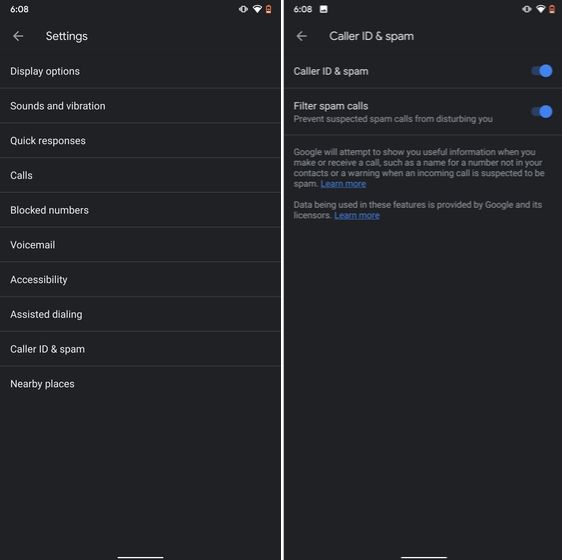
The one feature that I turn on whenever I set up a new Android device is: filter spam calls. It saves me from unwanted calls by telemarketers, fraudsters and spammers. If you use a stock Android device, you must have the Phone app by Google installed as your default dialer. To enable spam call blocking, open the Phone app and tap on the three-dot menu on the top-right corner and open Settings. After that, open "Caller ID and spam" and enable both the toggles. Now, whenever you will receive a call by spammers, the screen won't light up or make any sound. It's almost like DND with Total Silence turned on.

1. Block Spam Calls hidden android features

If you are worried that you will miss important calls then fret not. I have been using this feature for a long time and I can vouch that it works flawlessly. While there are other apps like Truecaller with similar features, you should be wary against handing your data to third-party apps, especially given its shady past record.

2. Verification Code Autofill

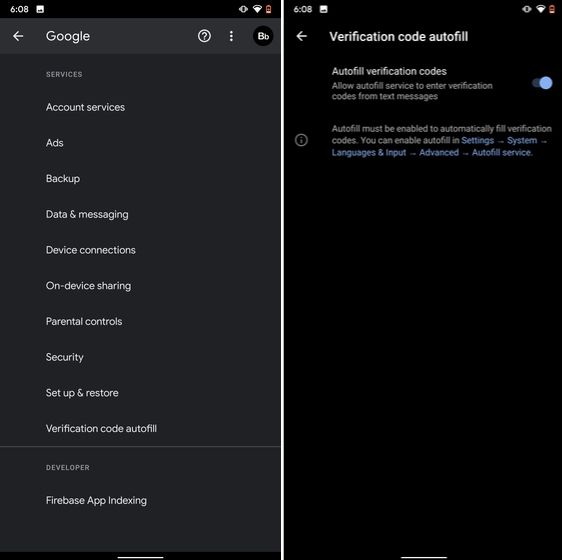
Many of us have allowed SMS permission to multiple apps for seamless OTP verification. However, this can lead to serious breach as apps can read all your text messages and also build credit profile without your consent. To crack down on this behavior, Google has brought a new API called the SMS Retriever. It allows apps to capture a one-time code without asking for SMS permission. In case, the app developer has not implemented this API, Google will act as a bridge and provide the verification code. That is awesome, right? So to enable this feature, navigate to Settings -> Google -> Verification Code Autofill and enable the toggle. Make sure you have also enabled the Autofill service by Google.

2. Verification Code Autofill

3. Force Dark Mode on all Apps

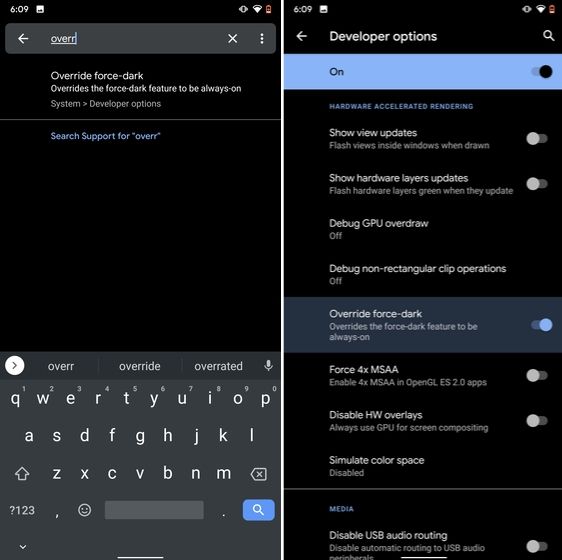
While the dark mode is slowly becoming the norm, there are still apps like Facebook and WhatsApp which are yet to embrace the dark side. If you want to force dark mode on a range of apps then there is a hidden Android setting that lets you do it. However, you must be on the latest Android 10 build. To enable dark mode for all the apps, navigate to Settings -> About Phone and tap on the Build Number for seven times continuously. A toast notification will show up prompting "Developer Options have been enabled". Now go back, and search for "Override force-dark" in the Settings page. Tap on the first result and then enable the toggle. Just to be sure, restart your device and check if dark mode is working on all apps.

3. Force Dark Mode on all Apps

4. Focus Mode

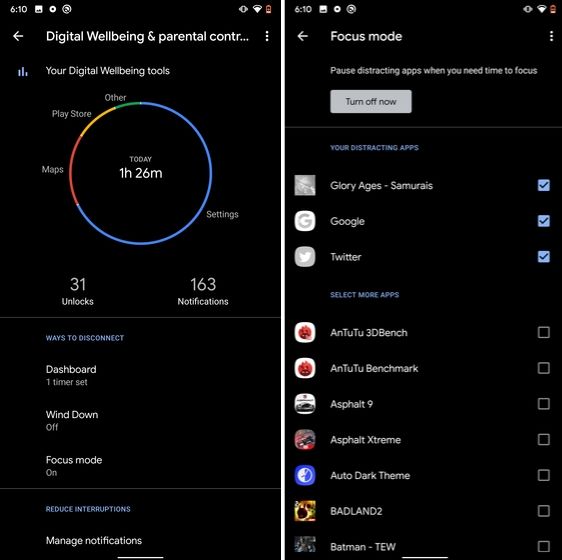
Google has brought a new feature called Focus Mode to Digital Wellbeing with the launch of Android 10. While Digital Wellbeing is great at limiting the screen time of various apps, Focus Mode allows you to block certain apps completely so you can focus on what you are doing. To configure Focus Mode, follow Settings -> Digital Wellbeing -> Focus Mode. Here, you can select apps that you find distracting and can enable Focus Mode straight from the Quick Settings panel.

4. Focus Mode hidden android features

5. Share WiFi with QR Code

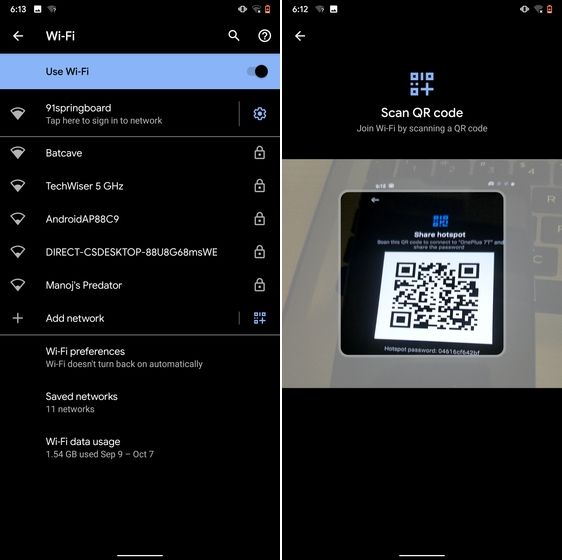
I know the feeling when someone asks you to share your WiFi's password and you can't seem to remember it. If you use a strong password with multiple hashes and characters then it becomes even more tedious to type it out. In such cases, a QR code can help you seamlessly connect to WiFi networks. Thankfully, Android 10 has this not-so-hidden feature under the WiFi Settings page. Open it and you will find the QR code scanner besides the "Add Network" section. Now, scan the QR code and you will be connected in no time.

5. Share WiFi with QR Code

6. Randomize MAC Address

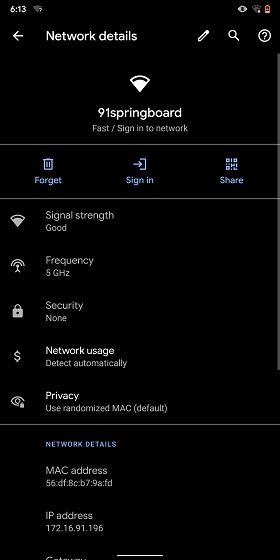
MAC address is a unique identifier assigned to WiFi-enabled devices including smartphones. Most devices come with a static MAC which can be exploited and used for tracking user movement. So having a random MAC address reduces the chance of tracking and strengthens your privacy. If you are running Android 10 then you can randomize the MAC address from the WiFi Settings page. Tap on the WiFi that you are connected to and open "Privacy". Here, make sure "Use randomized MAC" is your default pick.

6. Randomize MAC Address

7. Force Apps to Resize in Split Mode

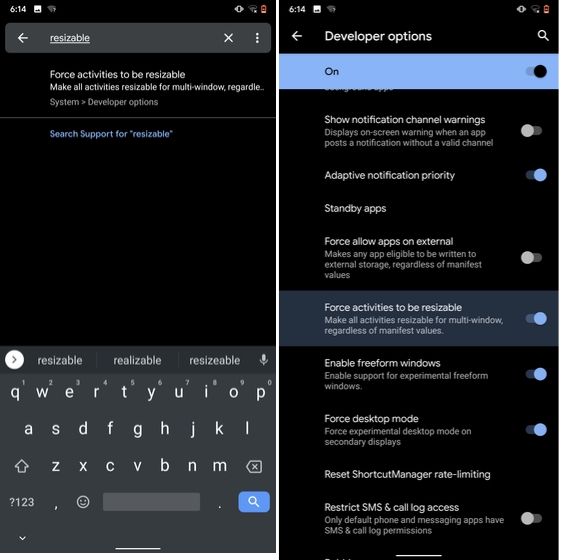
Android has some unique features like Split Mode which make it quite distinct from iOS. It lets you run two apps at once so you can effortlessly multitask between them. However, not all apps support Split Mode and that's where this hidden Android feature comes into play. With this feature, you can force any app to resize in split mode, irrespective of the app compatibility. So to enable this feature, open Settings and search for "resizable". Open the first result and enable "Force activities to be resizable". Now, restart your device and you can enjoy any app in the Split mode.

7. Force Apps to Resize in Split Mode

8. Default USB Configuration

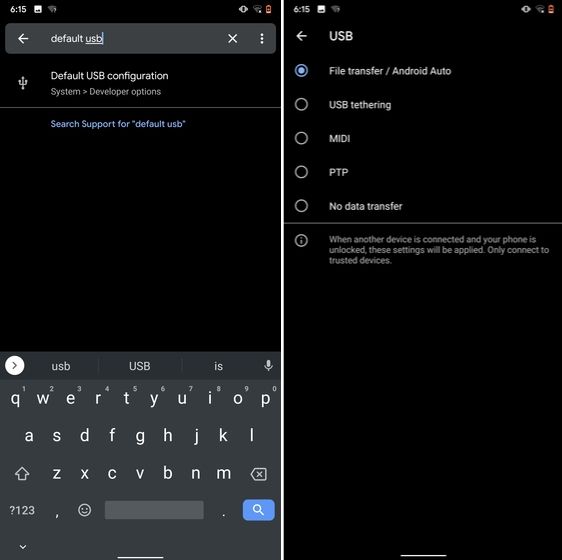
If you are someone who regularly connects Android devices to PC then this sneaky feature is going to help you a lot. Android 10 now allows you to choose your default USB configuration. If you transfer files regularly then simply choose the desired settings and you are good to go. To configure USB, open Settings and search for "Default USB" and tap on the first result. Here, choose "File transfer" or any other settings based on your preference.

8. Default USB Configuration (2) hidden android features

9. Private DNS

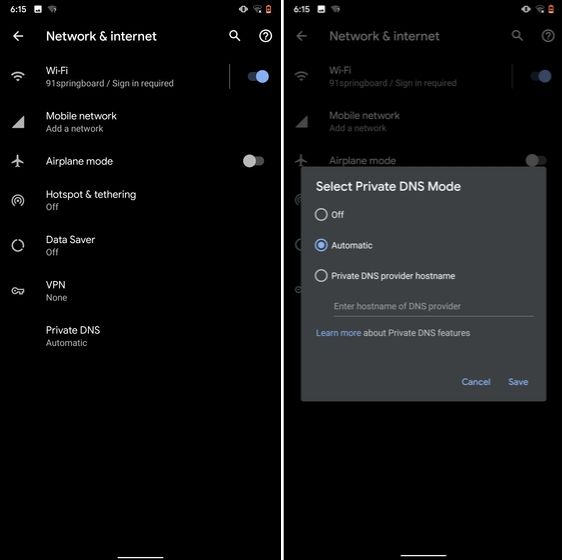
While Private DNS was launched with Android Pie, it still remains one of the least talked features of Android. It allows you to encrypt your DNS query so no one can read it, not even your internet service provider. You can find the Private DNS feature in the "Network and Internet" settings page. Here, open "Private DNS" and choose Automatic for Google's DNS or you can also select some other DNS providers as well. I would recommend you to go with Cloudflare's DNS.

9. Private DNS

10. Device Theming

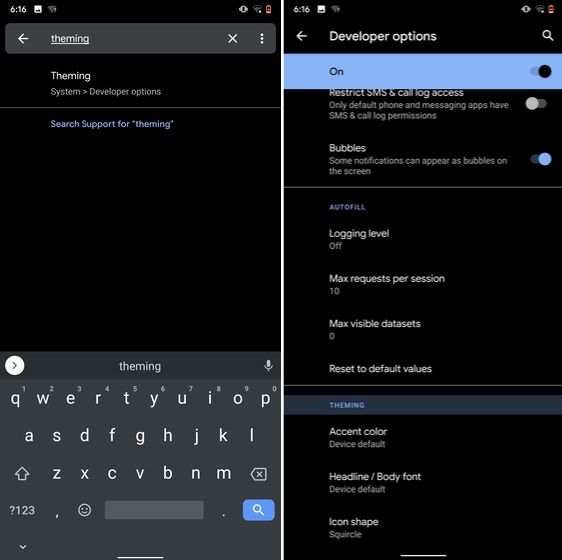
Device theming has finally arrived on Android, but it's still hidden under the developer options. You can change the accent color, font and icon shape from a handful of options. To find the desired settings page, open Settings and search for "theming". Tap on the top result and customize your Android device as you prefer.

10. Device Theming

11. Show Taps While Screen Recording

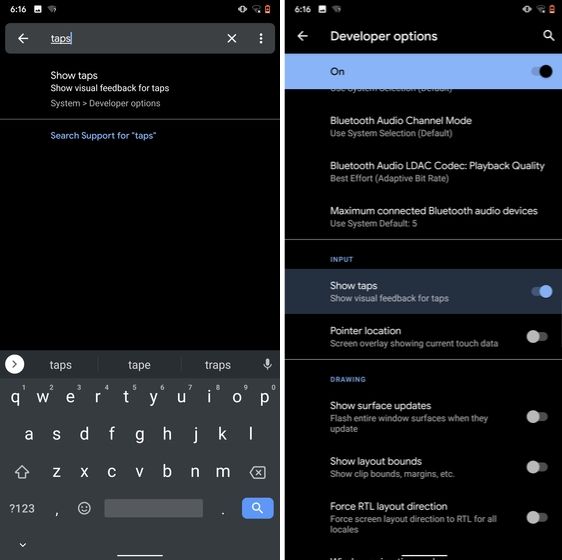
With the release of Android Oreo, Google removed the ability to show taps while screen recording for security reasons. However, the settings to configure taps is still available and hidden under the developer options. Just open the Settings page and search for "taps". Open the first result and enable the toggle. Now, you can record your screen with taps and that's really convenient.

11. Show Taps While Screen Recording hidden android features

12. Capitalize Words Quickly

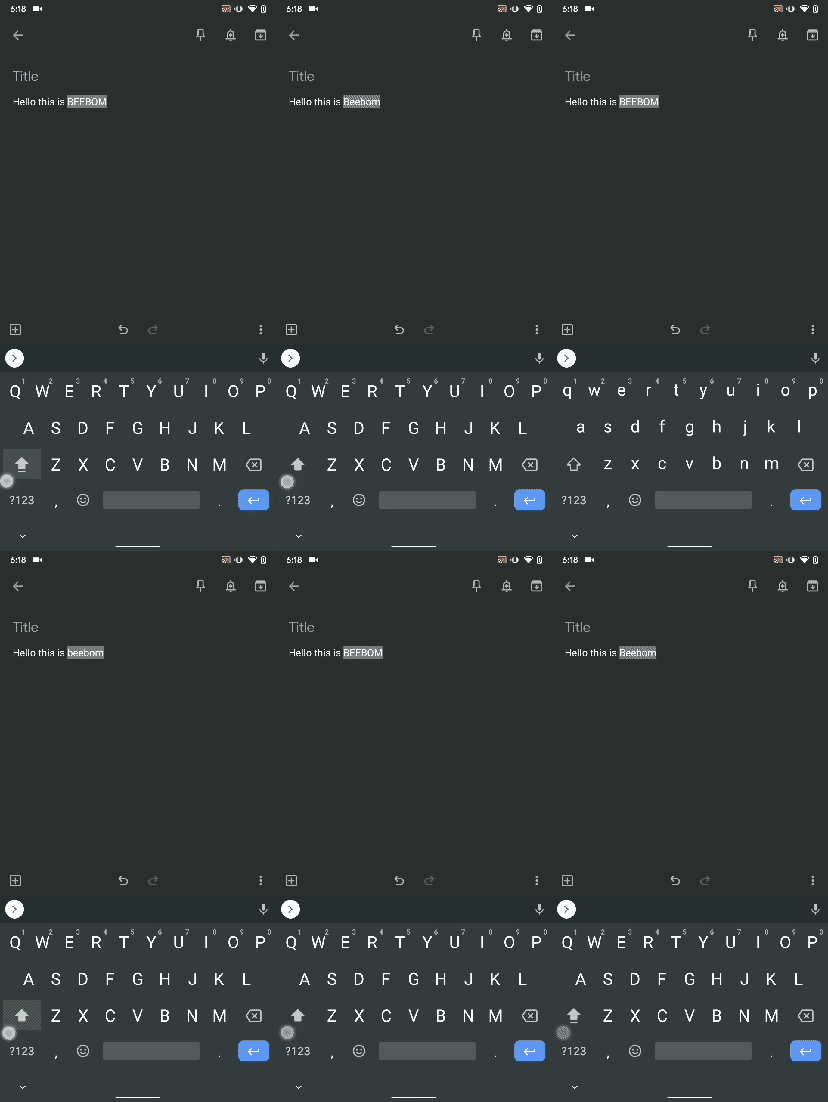
If you want to capitalize words quickly then Gboard has this nifty feature which is super helpful and I simply love it. Just select the words and tap the "Shift" button twice to capitalize a chunk of words at once. You can also make it lowercase by similarly double tapping the shift button. And if you just want to keep the initials capital then tap the shift button once. That's pretty great, right? So go ahead and type hassle-free with Gboard.

Capitalize Words Quickly

13. Uninstall Multiple Apps

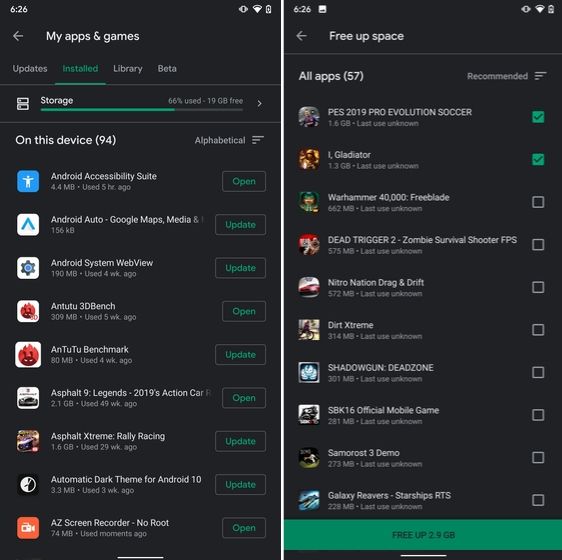
One of the best hidden Android features is that you can uninstall multiple apps at once. It works on older versions of Android as well so that is great. All you have to do is open the Google Play Store and tap on the hamburger menu and select "My apps and games". Here, switch to the "Installed" section and then tap on "Storage". After that, simply select apps that you want to uninstall and hit that "Free Up" button. Voila, multiple apps just got uninstalled in just one tap.

13. Uninstall Multiple Apps

14. Clear Site Storage Using Chrome

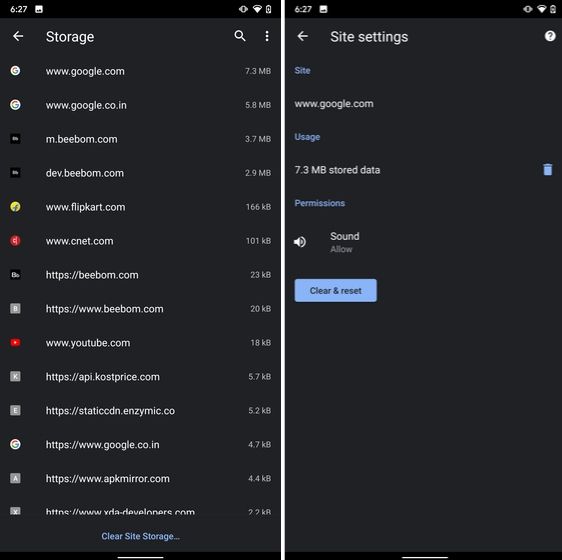
Chrome is notorious for accumulating a large amount of data in background which makes the performance worse and also takes up crucial storage space. If you want to check what websites are eating up your memory space then a hidden Chrome setting can help you with that. Open Chrome on your Android device and head over to its Settings page. Now, navigate to Site Settings and open Storage. Here, you will find all the websites with their storage space. Open any website and tap on the "Delete" icon to finally free up your internal storage from unnecessary cached data.

14. Clear Site Storage Using Chrome

15. Street View Layer in Google Maps

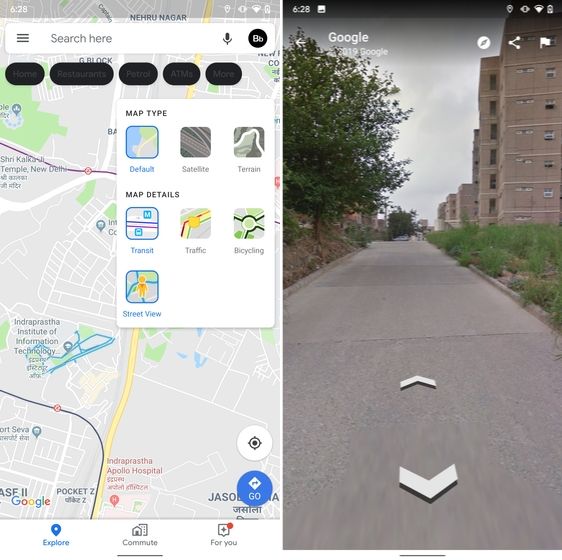
Street View is an immersive way to explore places and find new landmarks, hotels, restaurants from anywhere around the world. Now, the Street View Layer has been added to Google Maps and it works pretty well. To check if Street View is available in your region, open Google Maps and tap on the "layer" icon on the top-right corner. Now, tap on "Street View" icon and then zoom out to find blue lines on the map. Finally, tap on the blue lines and Street View will show up for that place. That's cool, right? So go ahead and check out Street View to find some hidden gems around the world.

15. Street View Layer in Google Maps hidden android features

Note: The blue lines show up wherever street view is available.

@EVERYTHING NT

More information


  1. Curso De Hacker Gratis Desde Cero
  2. Ingeniería Social. El Arte Del Hacking Personal Pdf
  3. Hacking Mifare
  4. Ethical Hacking Course
  5. Programa De Hacking
  6. Como Empezar A Hackear
  7. Ethical Hacking
  8. Hacking The Art Of Exploitation
  9. Hacking Books
  10. Portatil Para Hacking
  11. Black Hacker
  12. Growth Hacking Madrid
  13. Hacking Etico Libro

Ethical Hacking Platform For Penetration Testing | How To Hack The Invite Code: Join Hack The Box (HTB)

Hack The Box

Hack The Box (HTB) is a free platform available to ethical hackers to do a penetration testing for ethical hacking projects. It consist of different type of challenges that are updated constantly. Some of the challenges related to the real world scenarios and rest of the challenges related to learning towards a CTF style of challenges.
Before joining to HTB, there is a simple task for you to prove your skills after that you'll able to create an account, and then you'll be able to access to your HTB Lab, where several challenges await for you to hack them. That's the beginning step for all of us to joining this. If you got success while hacking then you'll get points.

Task For Joining The HTB

Before joining the HTB, there is a task to hack invite code and paste that code in the code box for further registration to your account. You can complete a simple challenge to prove your skills, if you don't hack that then here is a short video below this content about hacking the invite code. Watch the video and hack the code!


In this Video you'll learn about How to join Hack the box (HTB) in Kali Linux and other Linux Distributions.